
Free timesheet templates, weekly and monthly
Two free timesheets to download: a weekly one with two lines for each day and a monthly one with a line for every day of the month. The Excel file works out the hours from start, end and break, adds up the billable hours and multiplies them by your hourly rate. Its formulas use only functions Google Sheets has too. No sign-up and no email address.
Download the template
Weekly timesheet
Two lines a day, Monday to Sunday

Monthly timesheet
One line for each day of the month

The Excel and Word files are set to US Letter; switch the paper size to A4 in the print settings if you need it. The PDF to print comes in both sizes. Word doesn't calculate, so add up the hours yourself there, or use the Excel file.
Use it in Google Sheets
Upload the Excel file to Google Drive, open it and choose “Open with Google Sheets”, or start a blank sheet and use File, then Import. The formulas use only functions Google Sheets also has (IF, OR, MOD, ROUND, MAX, N, SUM, SUMIF and MONTH), and the billable column has a Yes and No list. The same functions exist in Numbers and LibreOffice.
How to fill in the weekly timesheet
- The header. Your name, the client and the project. Type the Monday of the week as a date in “Week starting”; the dates of all seven days fill in by themselves.
- Start, end and break. Type times with a colon, like 9:00 and 17:30, and the break in minutes. The hours column shows end minus start minus the break, as decimal hours: 9:00 to 17:30 with a 30-minute break is 8.00. A shift past midnight counts too.
- Two lines a day. Use the second line when you switch to another project in the day, or when part of the day isn't billable. Describe the work in the last column, in words your client will recognize.
- Billable. Choose Yes or No on each line. Billable hours add up only the Yes lines.
- Rate and amount. Type your hourly rate under the totals, and the sheet multiplies it by the billable hours. The amount has no currency sign, so it works in dollars, pounds or euros.
- Sign-off. If your contract or your client asks for an approved timesheet, print the sheet or save it as PDF and have it signed on the second line.
The monthly timesheet works the same way, with one line for each day: type the first day of the month, and the lines after the last day stay empty.
Decimal hours and rounding
Invoices count hours as decimals, so 7 hours 30 minutes is 7.50 and 15 minutes is 0.25. The sheet calculates with the exact minutes and rounds each line to two decimals. It doesn't round up to 6 or 15 minutes. If you bill in such steps, agree on that with your client and round the same way on every line; the billable hours calculator rounds a list of times for you and has a chart that turns minutes into decimal hours.
Weekly or monthly?
A weekly timesheet suits clients who approve hours every week and work that changes from day to day: two lines per day leave room for a second project. A monthly timesheet suits a retainer or a client you invoice once a month, and it gives one page per invoice. Both sheets have the same columns, so you can switch later.
What a timesheet usually shows
Whether you send it to a client with an invoice or keep it for yourself, a timesheet is easier to check when it shows who worked, for which client and project, the date, and the start and end time or the duration. Add the break, what the work was, whether it is billable, the total, and a signature where one is needed. These files have a place for each of them. If you record hours of employees, the rules on what to keep depend on the country and the contract; this page doesn't cover them.
When the spreadsheet gets long: the week timesheet in Clockaroo
In Clockaroo the week timesheet has the same shape as this file: a row for each project and task, a cell for each day, the totals at the end. You type a time into a cell as 1:30, 1.5 or 45m, and each cell saves on its own. “Copy last week” brings last week's rows over, with or without the hours. Every entry is billable or not, and the week shows how much of it is billable.
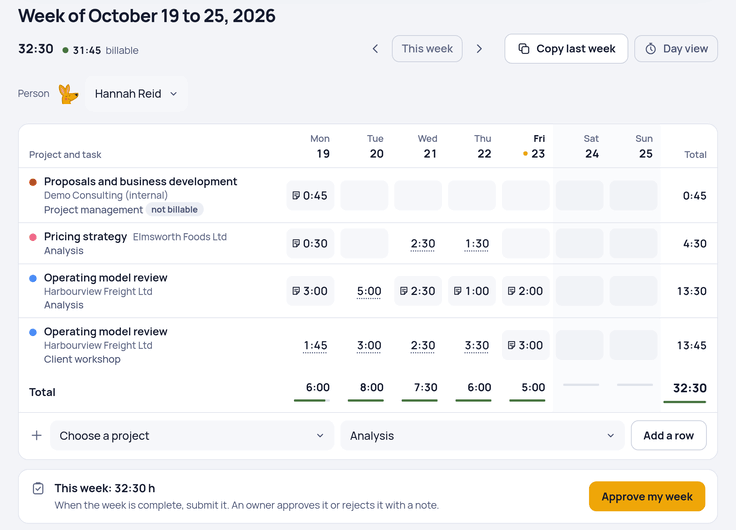
In a team, each person submits the week and an owner approves it. Then you pick a client and a period, and the unbilled hours become an invoice draft, grouped by task, person or project, in English, German, Dutch or French. Reports export every entry as CSV.
One person can use it free, including 5 invoices a month. Teams pay $9 for each person a month, with no fees per client, project or invoice. See pricing or create a free account.